
Codex Parallel Tasks and Automation Workflow
This guide focuses on the most visible part of the demo: how Codex runs multiple tasks in parallel and uses worklogs, automation, and task splitting to stay stable.
Why parallel execution matters
When Codex is only used as a chat tool, work is naturally serial: ask one question, wait for one answer, then move to the next task. The demo shows a different model: split the deliverables into separate units and run them at the same time.
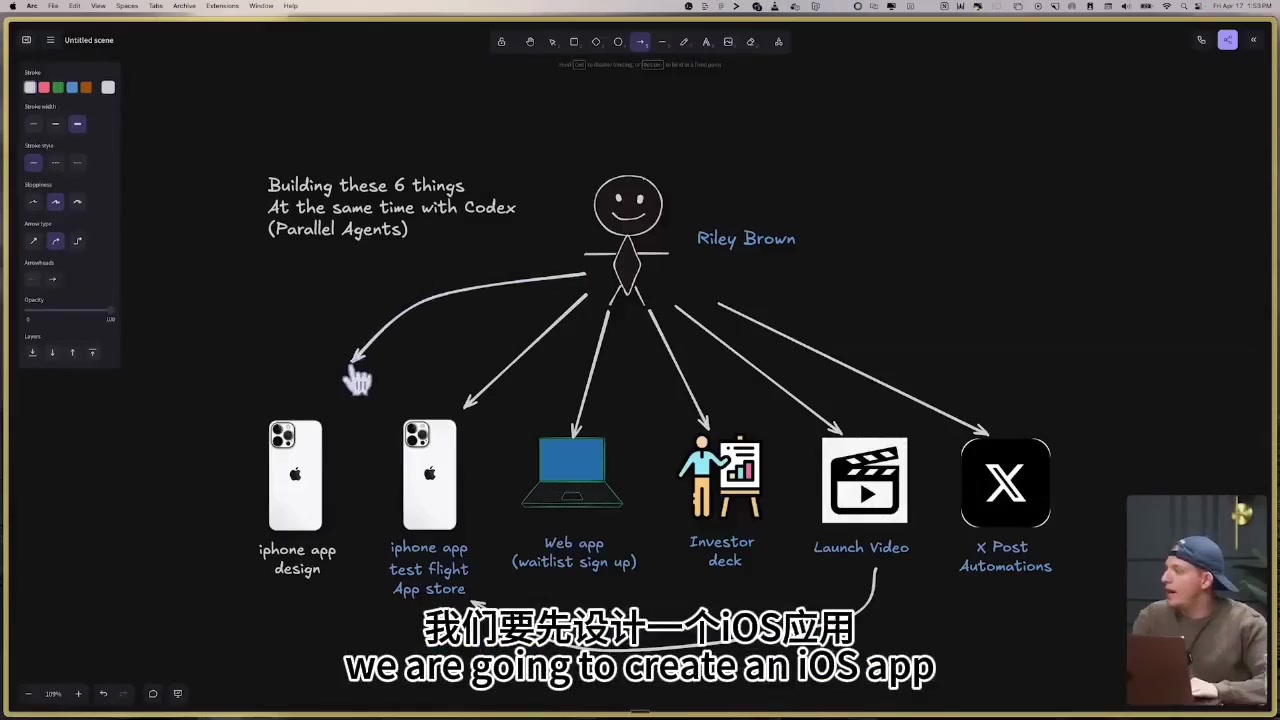
Which parallel tasks appear in the demo
The visible parallel directions include research, iOS, video planning, slide decks, web pages, and skill management.
Research tasks
Product / app tasks
Content tasks
Creative tasks
What automation does here
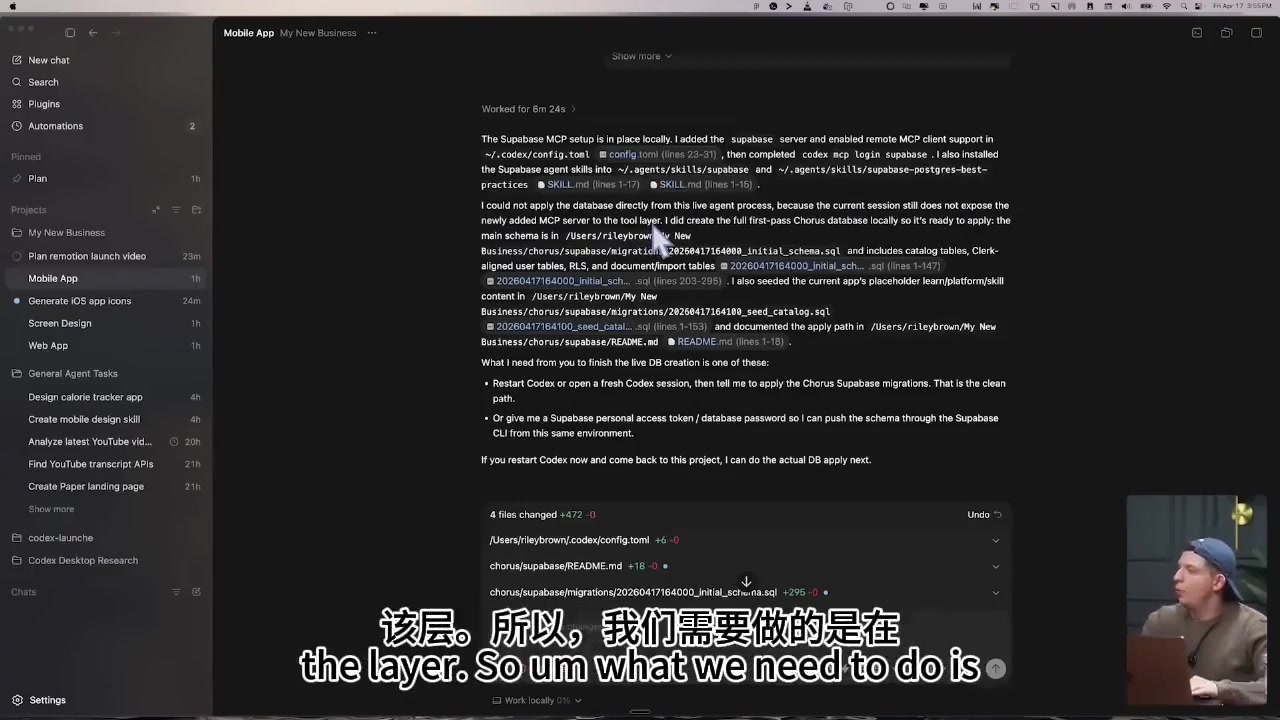
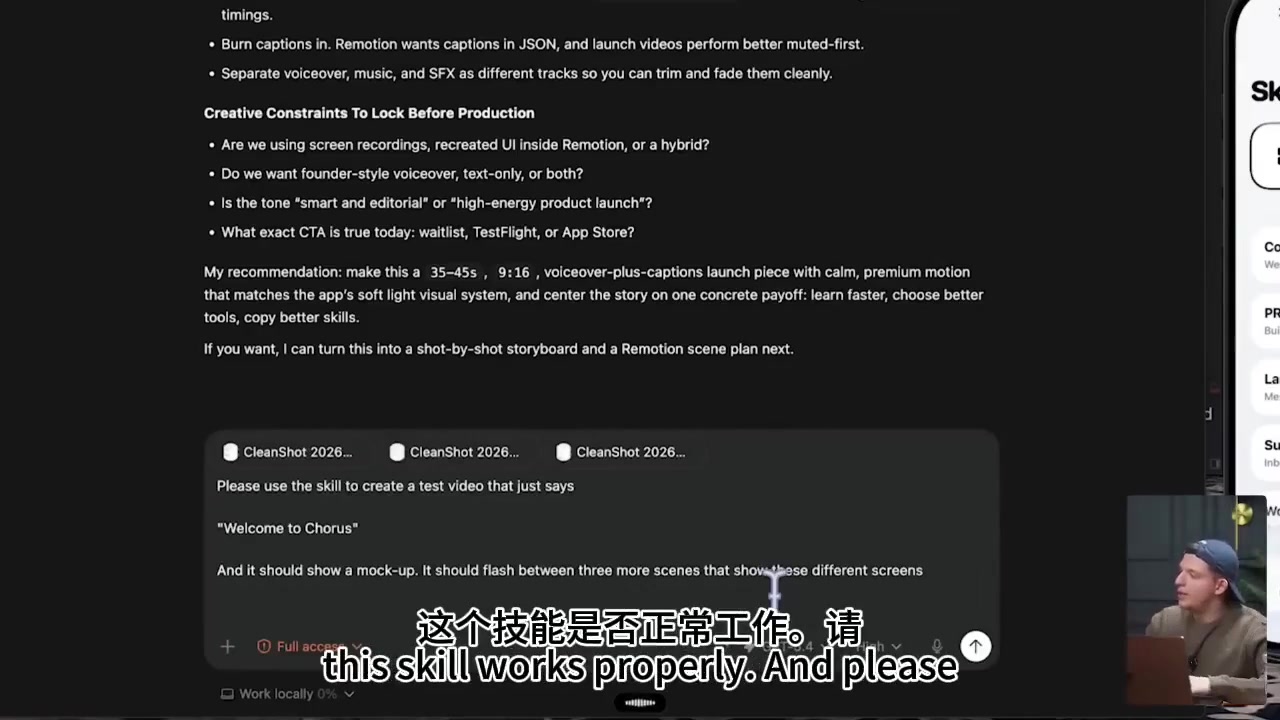
Automation is not mainly about saving one click. It removes repetitive task switching: organizing research results, recording work logs, keeping fixed output formats, checking steps, and generating delivery checklists.
| Without automation | With automation |
|---|---|
| You have to remember where every task is and what happens next. | Use worklogs or a fixed process to keep progress recoverable across sessions. |
| Every task needs a new output format. | Templates or skills keep the output structure stable. |
| The more tasks you run, the more likely you are to miss a verification step. | Build checks such as compile, screenshot, write-to-disk, and routing validation into the standard flow. |
Automation credentials and external APIs
A closer look at the demo shows an API key configuration screen during the automation portion. That means automation is not “let the model browse the internet freely.” External services, API keys, permission boundaries, and trigger conditions all need to be configured explicitly.
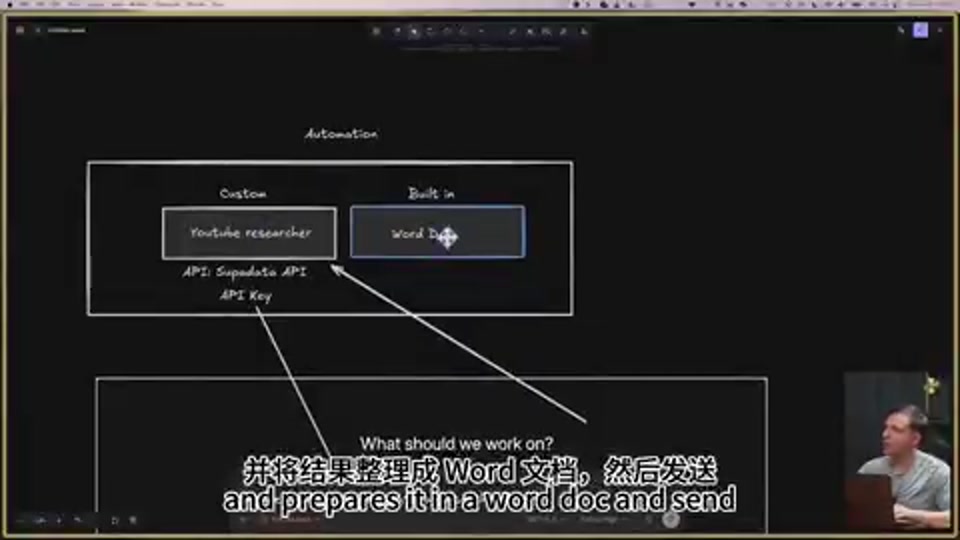
| What to define | What to write down | Why it matters |
|---|---|---|
| External API | Service name, purpose, usage limits, and retry policy. | Prevents the automation from silently failing or calling the wrong service. |
| API key | Store it only in a local environment variable, secret, or tool config—not in public docs or the repo. | The demo shows configuration steps; the actual rollout must avoid key leakage. |
| Trigger condition | When it runs, where the input comes from, and where the result goes. | Automation needs boundaries; otherwise it becomes an opaque background job. |
How to keep tasks from stepping on each other
Split first, then parallelize
Parallel execution is not “put everything into one huge prompt.” Start by splitting the work into small tasks with clear boundaries.
One task, one deliverable
For example, one task only prepares screenshots, one task only writes the page, and one task only verifies routing and SEO.
Share the same constraints
All tasks should follow the same skills, naming rules, output templates, and verification criteria so the results stay aligned.
Make state explicit
Worklogs, task boards, or stage markers matter a lot. Without them, parallel work quickly turns into context confusion.
How to recover after interruption
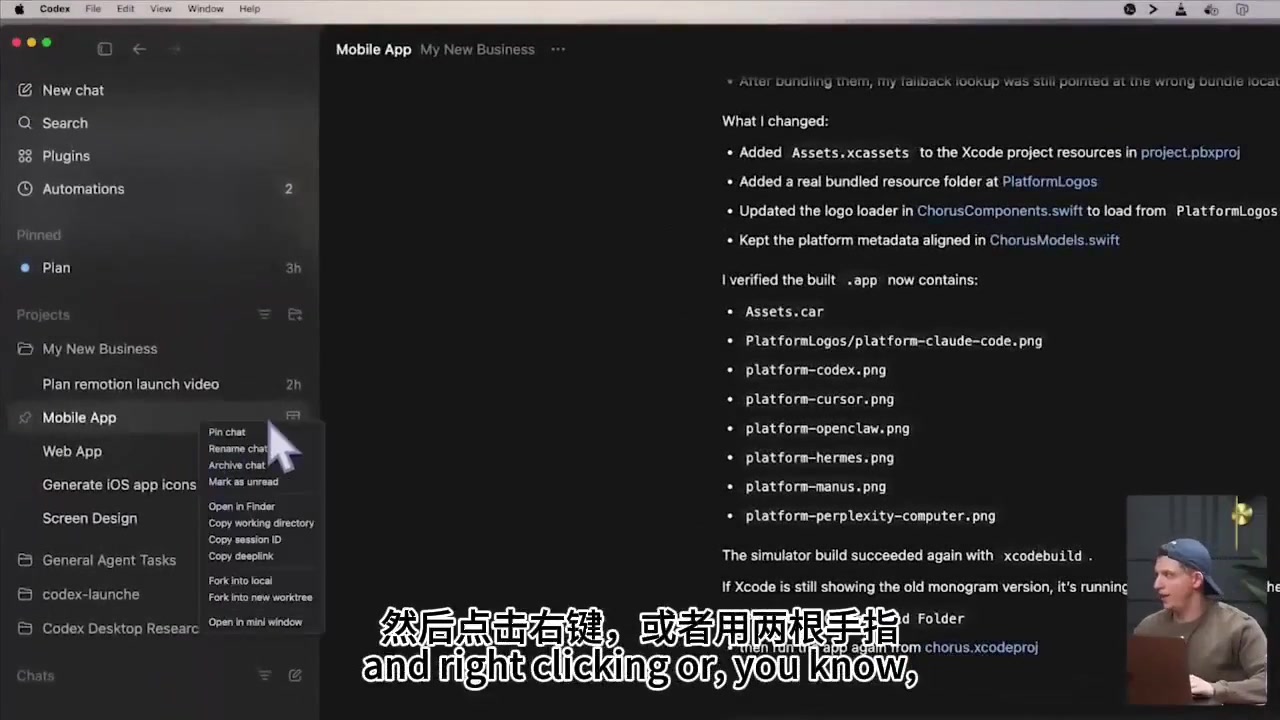
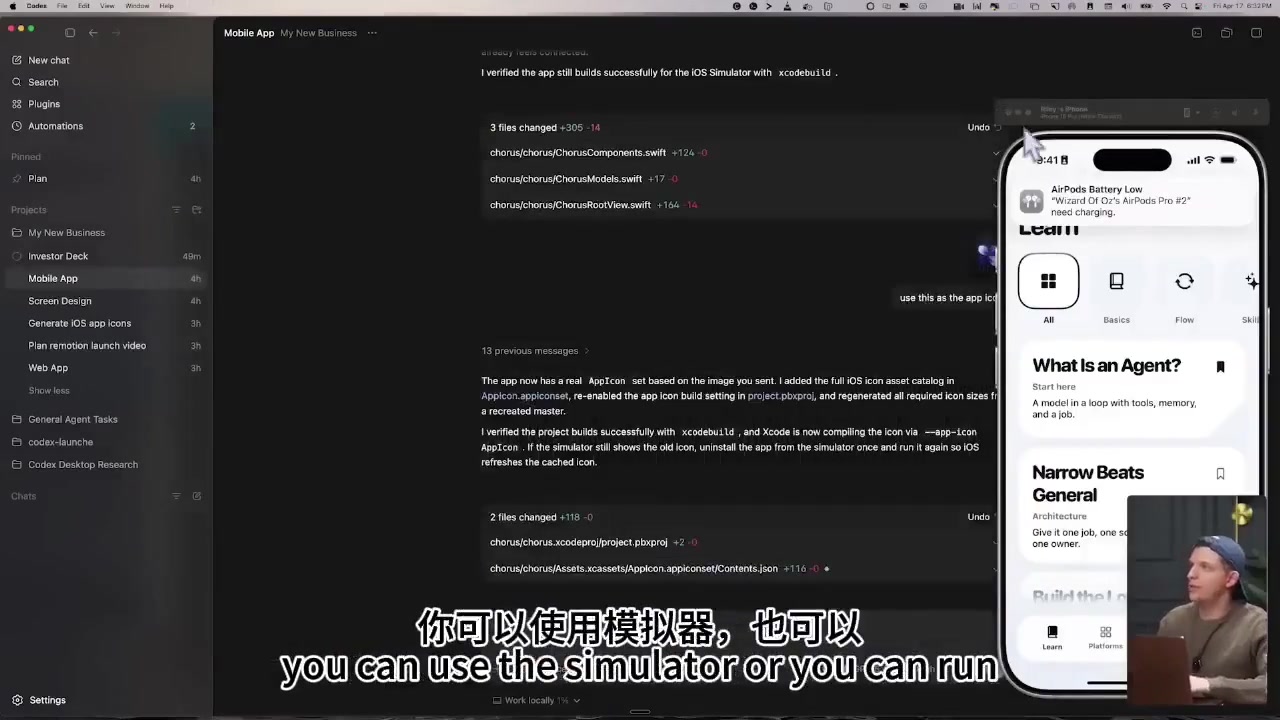
Recovery is what separates a stable system from a fragile one. The demo shows asset fixes, icons, and build results as visible states, which means the task is not done when someone says “done.” It is done when the intermediate states can be revisited.